Why Roborock Fails to Map Entire House: Causes and Fixes
Roborock Not Mapping Rooms
It is frustrating when your Roborock vacuum ignores certain rooms or fails to complete a full map of your home. This problem often leads to missed spots and inefficient cleaning paths.
By following these steps, you can resolve navigation errors and ensure your robot vacuum recognizes every corner of your living space. This guide provides technical solutions to restore accurate mapping functionality.
TL;DR: How to fix Roborock mapping issues
- Clear all floor clutter and open every door before starting a clean.
- Clean the LiDAR sensor and side wall sensors with a dry microfiber cloth.
- Enable “Map Saving Mode” in the vacuum settings.
- Cover floor-length mirrors or glass doors that reflect the laser signal.
- Run a “Full Clean” rather than a room or zone clean to generate a new map.
What causes Roborock mapping problems
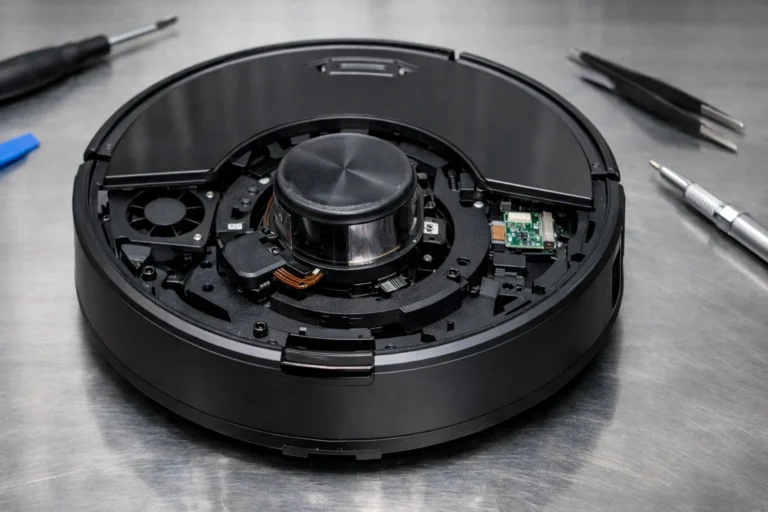
Most mapping failures are caused by environmental interference rather than hardware defects. The LiDAR (Light Detection and Ranging) sensor on top of the robot uses lasers to “see” your walls, but this technology has specific limitations.
Reflective surfaces Floor-length mirrors, glass doors, and stainless steel appliances can bounce the laser signal away. This makes the robot think the room is much larger than it is or creates “phantom rooms” that confuse the navigation system.
Poor lighting or high contrast While LiDAR works in the dark, the optical sensors used for obstacle avoidance require some light. If a room is pitch black or has very high-contrast shadows on the carpet, the robot may perceive these as cliffs or obstacles and refuse to enter.
Mechanical obstructions A dirty wall sensor or a stuck bumper can prevent the robot from accurately tracking its position. If the robot thinks it is hitting something when the path is clear, it will stop mapping that area.
Firmware and App settings If Map Saving Mode is disabled, the robot will treat every cleaning cycle as a brand-new environment. Firmware bugs can also cause the robot to return to the dock prematurely before the map is finished.
Tools and supplies you will need
- Clean, dry microfiber cloth
- 70% Isopropyl alcohol (for stubborn sensor grime)
- Flashlight (to check for sensor obstructions)
- Smartphone with the Roborock or Mi Home app installed
- Painter’s tape or cardboard (to temporarily cover mirrors)
Step-by-step instructions
1. Prepare the environment
Pick up all loose cables, toys, and small rugs. Open every door to rooms you want mapped and ensure there are no physical barriers like baby gates blocking the robot’s path.
2. Clean the sensors
Use a microfiber cloth to wipe the LiDAR turret on top of the robot. Ensure the laser can spin freely. Wipe the side wall sensor and the front infrared array to remove dust and fingerprints.
3. Cover reflective surfaces
If you have floor-length mirrors, place a strip of painter’s tape or a piece of cardboard at the bottom 4 inches. This prevents the laser from reflecting and keeps the robot from getting “lost” in a mirror image.
4. Check App settings
Open the Roborock app and go to Settings. Ensure “Map Saving Mode” (sometimes called Multi-map or Vacuum Settings) is toggled on. If this is off, your robot will not remember the rooms it just cleaned.
5. Reset the existing map
If the current map is distorted or has “ghost” rooms, delete it. In the Map Management section, select the current map and choose “Delete.” It is often faster to start fresh than to try and fix a corrupted map.
6. Perform a Full Clean
Place the robot on its dock and select “Full Clean.” Do not use “Zone Clean” or “Room Clean” for the initial mapping run. Let the robot finish the entire house and return to the dock on its own without intervention.
Warning: Never pick up the robot or move it manually while it is in the middle of a mapping run. Doing so will cause the robot to lose its position, and the map will likely fail to save.
Common mistakes to avoid
- Moving the dock: Never move the charging station once the mapping process has started. If the dock moves even a few inches, the robot may fail to “localize” and the map will get skewed.
- Closing doors: If a door is closed during the first run, the robot marks it as a wall. While it may find the room later, it often requires a full re-map to integrate the new space properly.
- Inadequate lighting: While the laser works in the dark, the AI cameras on newer models (like the S7 MaxV or S8) can struggle. Keep some lights on during the first mapping session.
How to test if the fix worked
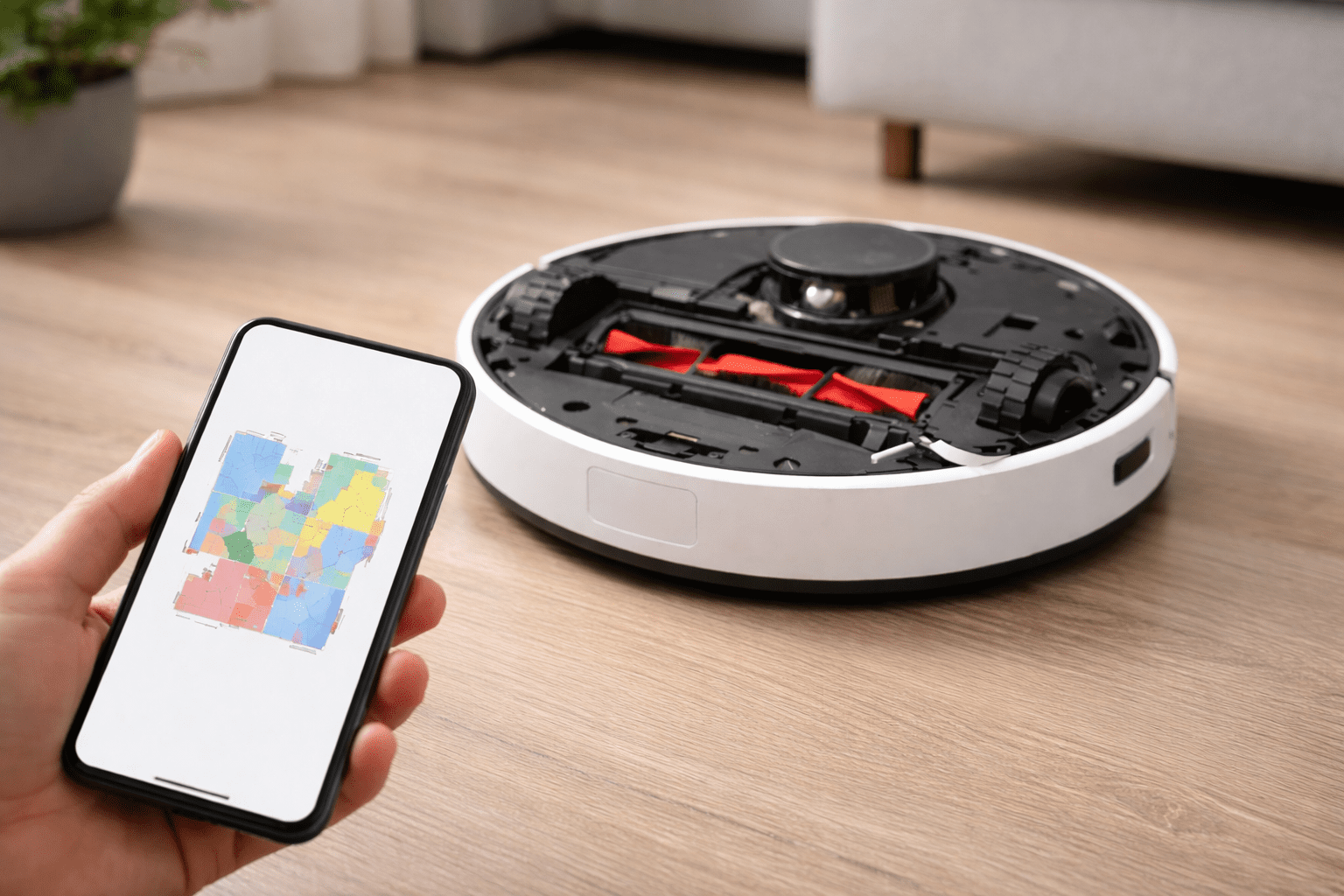
Open the app while the robot is cleaning. You should see a yellow or blue icon representing the robot moving in real-time. The room outlines should appear crisp and straight, mirroring your actual walls.
Wait for the robot to finish the entire floor. Once it docks successfully, a notification should appear stating “New Map Saved.” Check the map to see if all rooms are now partitioned and labeled correctly.
When replacement is the better option
If the robot constantly spins in circles or reports an “Internal Error” or “LDS Error,” the mapping issue may be hardware-related. If the LiDAR motor (the spinning piece inside the turret) fails, the robot cannot see its surroundings.
If your Roborock is more than four years old and requires a new motherboard or LiDAR assembly, the cost of parts and labor often approaches the price of a new mid-range model. However, LiDAR motors are often cheap and replaceable for those comfortable with basic tools.
Frequently asked questions
Why does my Roborock return to the dock before finishing the map?
This usually happens if the battery drops below 20%. The robot will return to charge and should resume mapping once it reaches 80% power. If it doesn’t resume, check that “DND (Do Not Disturb)” mode isn’t active.
Can I map multiple floors?
Yes. Enable “Multi-map” in the settings. You will need to carry the robot and the dock (or just the robot for some models) to the second floor and initiate a new “Full Clean.”
Why did my map suddenly rotate 45 degrees?
This is called “map tilt” and is usually caused by the wheels slipping on a rug or the robot bumping into a mirror. Deleting the map and re-mapping with mirrors covered is the only permanent fix.
Does Roborock map every time it cleans?
It uses the saved map to navigate but updates it slightly each time. If you move furniture, the robot will eventually update the map, though it may take 2-3 cleaning cycles to reflect the change.
How do I map a room that the robot keeps skipping?
Ensure there are no dark rugs at the entrance that the robot might mistake for a cliff. If the issue persists, use the “Remote Control” feature in the app to drive the robot into the room manually to see if it triggers an error.
Models covered
This guide applies to the following Roborock series:
- S-Series: S4, S4 Max, S5, S5 Max, S6, S6 Pure, S6 MaxV, S7, S7+ , S7 MaxV, S8, S8 Pro Ultra.
- Q-Series: Q5, Q5+, Q7, Q7 Max, Q8 Max.
- E-Series: Note that E4 and E5 use internal gyroscopes rather than LiDAR, so they do not save permanent maps in the same way as S or Q series models.
The repair steps are identical for most LiDAR-based models, though the app menu names may vary slightly between the Roborock app and the Xiaomi Mi Home app.