Eufy Vacuum Not Powering Up? How to Fix Power Issues
Eufy Not Turning On
A Eufy vacuum that refuses to power up prevents any floor maintenance and is a common source of frustration for owners. This guide walks through the troubleshooting steps to identify why your vacuum has no power and how to get it running again.
Following these technician-verified steps will help you determine if the issue is a simple connection problem or a component failure. Most power issues can be resolved at home without professional repair services.
TL;DR: Quick fixes for Eufy power issues
- Verify the physical power switch on the side or bottom is flipped to the “I” (On) position.
- Clean the metallic charging contacts on both the robot and the base with rubbing alcohol.
- Check that the charging base indicator light is solid and the power cable is fully seated.
- Perform a hard reset by removing the battery for 60 seconds and then re-installing it.
- Replace the battery if the unit only powers on while physically sitting on the charger.
What causes a Eufy vacuum to not power up
There are several mechanical and electrical reasons why a Eufy robot stops responding. Identifying the specific cause helps prevent unnecessary part replacements.
Main power switch is off Many Eufy models feature a physical toggle switch on the side or bottom. This switch can be accidentally flipped during cleaning or maintenance, cutting all power to the motherboard.
Dirty charging contacts Over time, a thin layer of oxidation or dust builds up on the charging pins. This creates resistance that prevents electricity from reaching the battery, even if the robot appears to be docked correctly.
Battery deep discharge If the robot remains off the charging base for several days, the battery level may drop below the “critical threshold.” In this state, the robot cannot boot up until it receives a steady trickle charge for several hours.
Faulty power adapter or base The charging base or the wall adapter can fail due to power surges. If the base isn’t sending a signal, the robot will eventually drain its battery completely and shut down.
Firmware “Handshake” errors Occasionally, a Eufy won’t start after an app update because the software has crashed during the boot sequence. This leaves the hardware in a “zombie” state where lights may show, but the motor won’t engage.
Tools and supplies you’ll need
- Microfiber cloth
- 70% Isopropyl alcohol (rubbing alcohol)
- Phillips #2 screwdriver
- A known-working wall outlet
Step-by-step instructions
1. Check the master power switch
Locate the physical toggle switch on the side of the unit, usually near the bumper or the dust bin. Ensure it is flipped to the “I” position; the “O” position completely kills the circuit for storage.
2. Inspect the charging base light
Look at the small LED indicator on top of the charging base. If the light is off, check the power cable connection at the wall and at the bottom of the base. Try a different wall outlet to rule out a tripped breaker.
3. Clean the charging contacts
Dampen a microfiber cloth with a small amount of rubbing alcohol. Wipe the two metallic squares on the bottom of the robot and the two spring-loaded pins on the charging base until they are shiny.
Warning: Do not use water or soap to clean contacts. Moisture can cause a short circuit or lead to corrosion that permanently damages the charging system.
4. Manually dock the robot
Do not rely on the robot to find the base if the battery is dead. Physically pick up the Eufy and align the bottom contacts with the base pins. You should hear a beep or see the power button light up when the connection is made.
5. Perform a battery reset
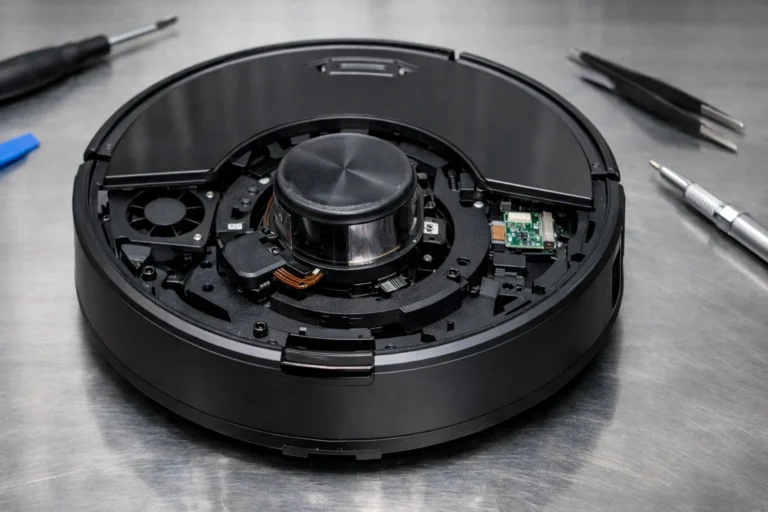
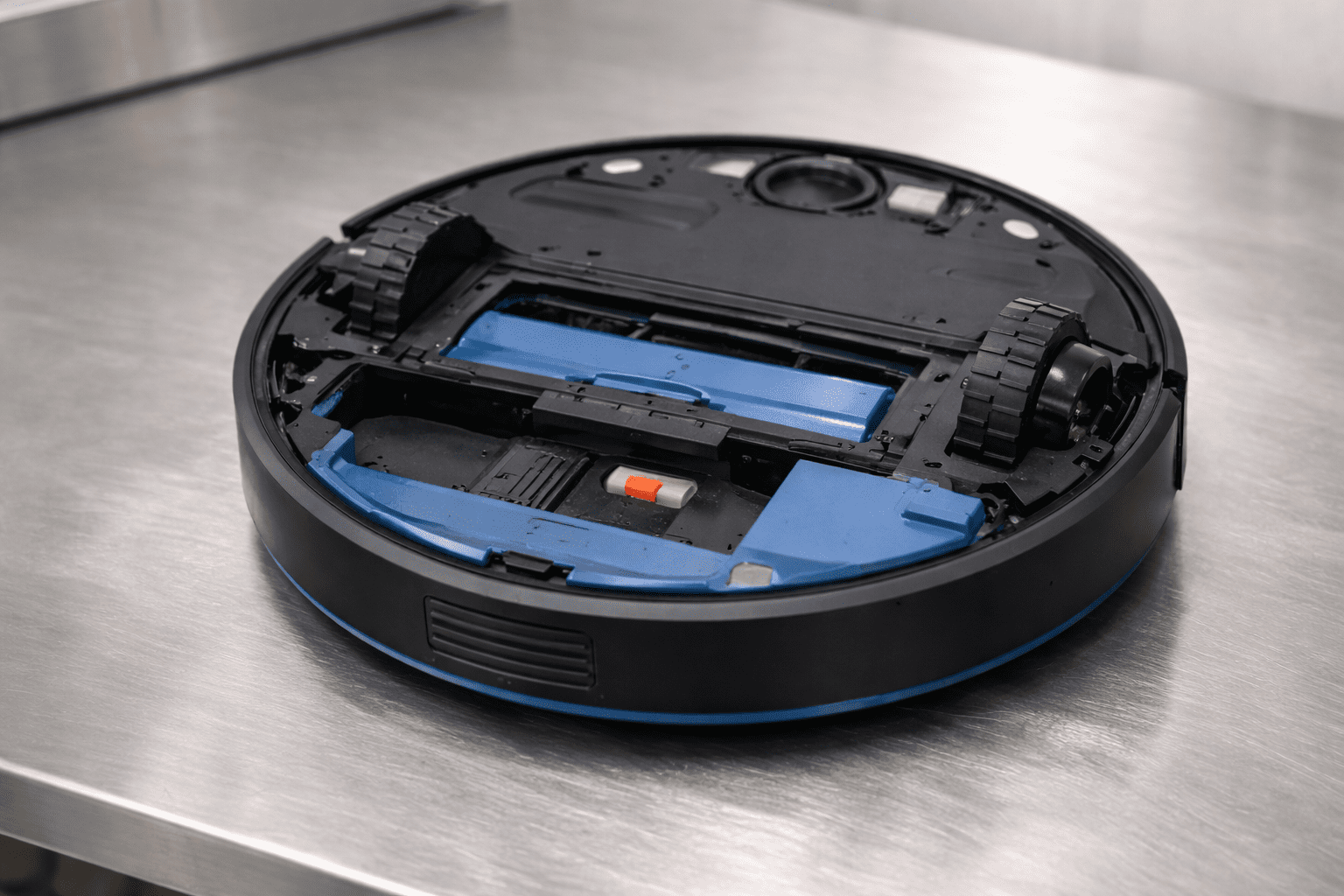
If the Eufy won’t boot but shows lights, flip the robot over and unscrew the battery compartment door. Disconnect the battery clip, wait 60 seconds to drain the capacitors, then reconnect it firmly.
6. Inspect the battery for swelling
While the battery door is open, check if the battery pack feels bloated or “puffy.” If the casing is deformed, do not attempt to charge it further, as this indicates a failed lithium cell that is a fire hazard.
7. Long-cycle charging
If the unit was completely dead, leave it on the dock for at least 6 hours without touching it. Sometimes a deeply discharged battery needs a slow recovery charge before the “Start” button will function again.
Common mistakes to avoid
- Ignoring the side switch: Many users assume the top button is the only power control. The top button is a “wake” button; the side switch is the actual power gate.
- Using abrasive pads: Never use steel wool or sandpaper to clean contacts. This removes the protective plating and causes the contacts to rust within weeks.
- Partial docking: Ensure the robot is perfectly centered. If it is slightly crooked, one pin may touch while the other does not, preventing a charge.
- Leaving it on carpet: If the charging base is on a high-pile carpet, it may tilt backward, preventing the pins from making solid contact with the robot.
How to test if the fix worked
Place the robot on the dock and wait for the power button to pulse (usually orange or blue). Once the light turns solid blue, press the “Play” button on the unit or the remote.
If the robot moves off the base and begins its cleaning cycle without immediately shutting down, the connection and battery are healthy. Check the EufyHome app to ensure the battery percentage is increasing while docked.
When replacement is the better option
Batteries are consumable parts. If your Eufy is more than two years old and only runs for 10 minutes before dying, a new battery pack is required. This is a simple $25–$40 DIY fix.
If you have confirmed the outlet and charger are working, but the robot remains completely dark even after a battery reset, the motherboard has likely failed. In this case, if the vacuum is out of warranty, the cost of a new motherboard and labor often exceeds the value of the machine.
Frequently asked questions
Why is my Eufy beeping while on the charger?
This usually indicates the power switch is in the “Off” position while the robot is trying to charge. Flip the side switch to “On” to stop the beeping and allow the battery to fill.
What does a solid red light mean?
A solid red light combined with a power-on failure usually means the brush roll or a wheel is jammed, causing a system-wide safety shutdown. Clear all debris from the moving parts.
My Eufy won’t start after an app update. What do I do?
Force-close the EufyHome app, turn the side power switch off for 30 seconds, and turn it back on. This forces the firmware to reload and usually clears the “hang” after an update.
Can I use a third-party battery?
Yes, but ensure it matches the voltage and mAh specifications of the original. Using a battery with the wrong voltage can permanently fry the motherboard.
The light on the base is blinking. Is that normal?
On most Eufy models, the base light should be solid. A blinking light often suggests a faulty power adapter or a short circuit in the base itself. Replace the adapter first.
Models covered
This troubleshooting guide applies to the following Eufy RoboVac models:
- Slim Series: 11S, 11S Plus, 11S Max, 12, 15C, 15C Max, 15T, 25C, 30, 30C, 30C Max, 35C.
- G Series (Path Tracking): G10, G20, G30, G30 Edge, G30 Verge, G30 Hybrid.
- L Series (Laser Navigation): L70 Hybrid, L35 Hybrid.
- X Series: X8, X8 Hybrid.
The L70 Hybrid and X8 models do not have a side toggle switch; they rely on a long-press of the top power button to perform a hard reset. All other models follow the toggle switch instructions provided above.